Meet Glance. A month calendar for your menu bar.

Click the date next to the clock for the whole month. Add events the way you’d say them, see a countdown to your next meeting, and join it with one click. No account, no main window, and nothing leaves your Mac.

Free · Open source · Apple Silicon · macOS 13+

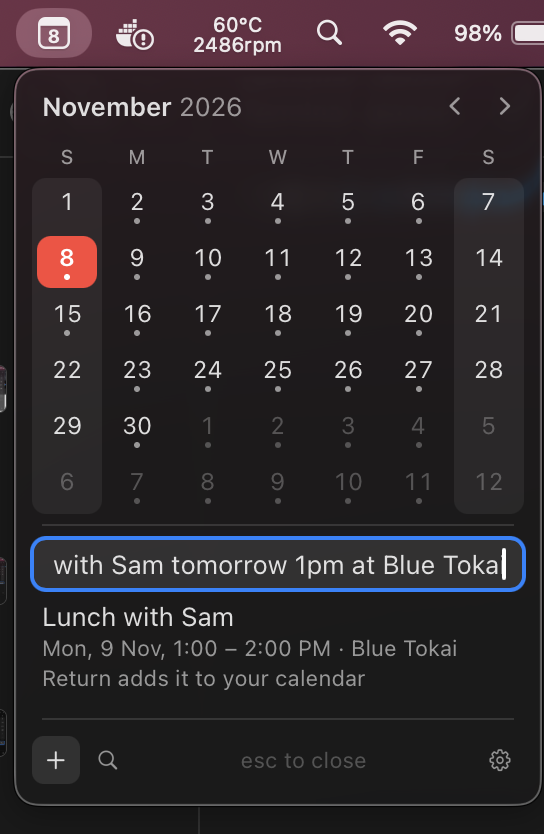
The month calendar open under its menu bar icon, adding “Lunch with Sam tomorrow 1pm at Blue Tokai” with a preview of the day, time and place

Everything about your day, one click away.

Quick add

Add an event the way you’d say it.

Press ⌘N and type. Glance shows what it understood as you go, adds the event to the calendar you chose, and keeps Undo beside the day for 30 seconds. Record a shortcut in Settings to start one from any app.

  • Lunch with Sam tomorrow 1pmTomorrow, 1:00 – 2:00 PM
  • Review 2 to 3:30pmA range sets the end
  • Call Friday 4pm for 30mThirty minutes long
  • Coffee 10am at Blue Tokai“at” sets the place
  • Sync Monday 11am on zoomAttaches your meeting link
Meeting reminder

Never late to a call.

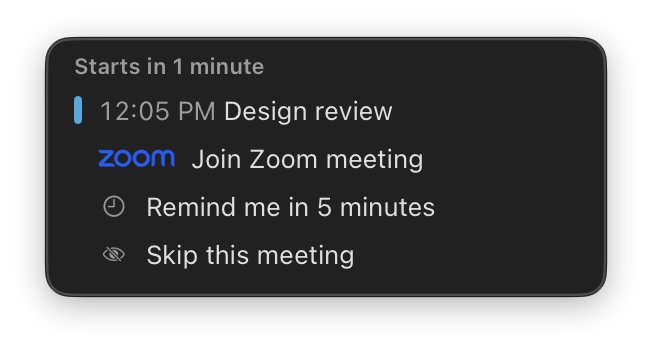
A minute before a meeting with a link, a small card appears under the menu bar item with a Join button. It never takes focus from what you’re typing. Snooze it, skip the meeting, or press Escape. In-person meetings can get a card ten minutes ahead, with the place one click from Maps.

The reminder card a minute before a call: “Starts in 1 minute”, the meeting’s time and name, Join Zoom meeting, Remind me in 5 minutes, and Skip this meeting

Countdown

What’s next, at a glance.

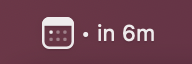
The menu bar item can count down to your next event or reminder. A meeting about to start takes over from a long block that’s still running. Right-click the item to Join the meeting that’s on, or the next one today.

The menu bar item counting down to the next meeting: “• in 6m” after the calendar icon

Search

Find any event.

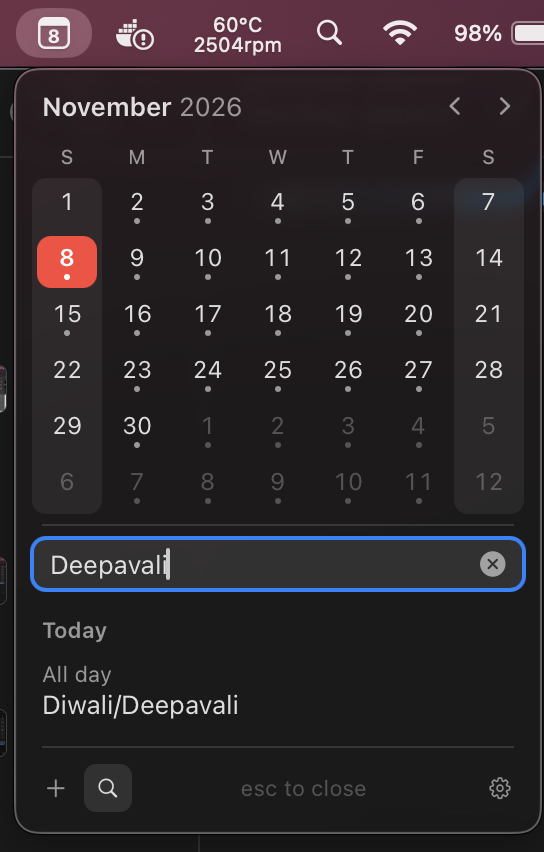
⌘F searches your events by title and place, from a month back to three months ahead, upcoming first. Return opens the day.

Searching for “Deepavali”: the matching event listed under Today, with new event, search and settings in the footer

Settings

Feels like part of macOS.

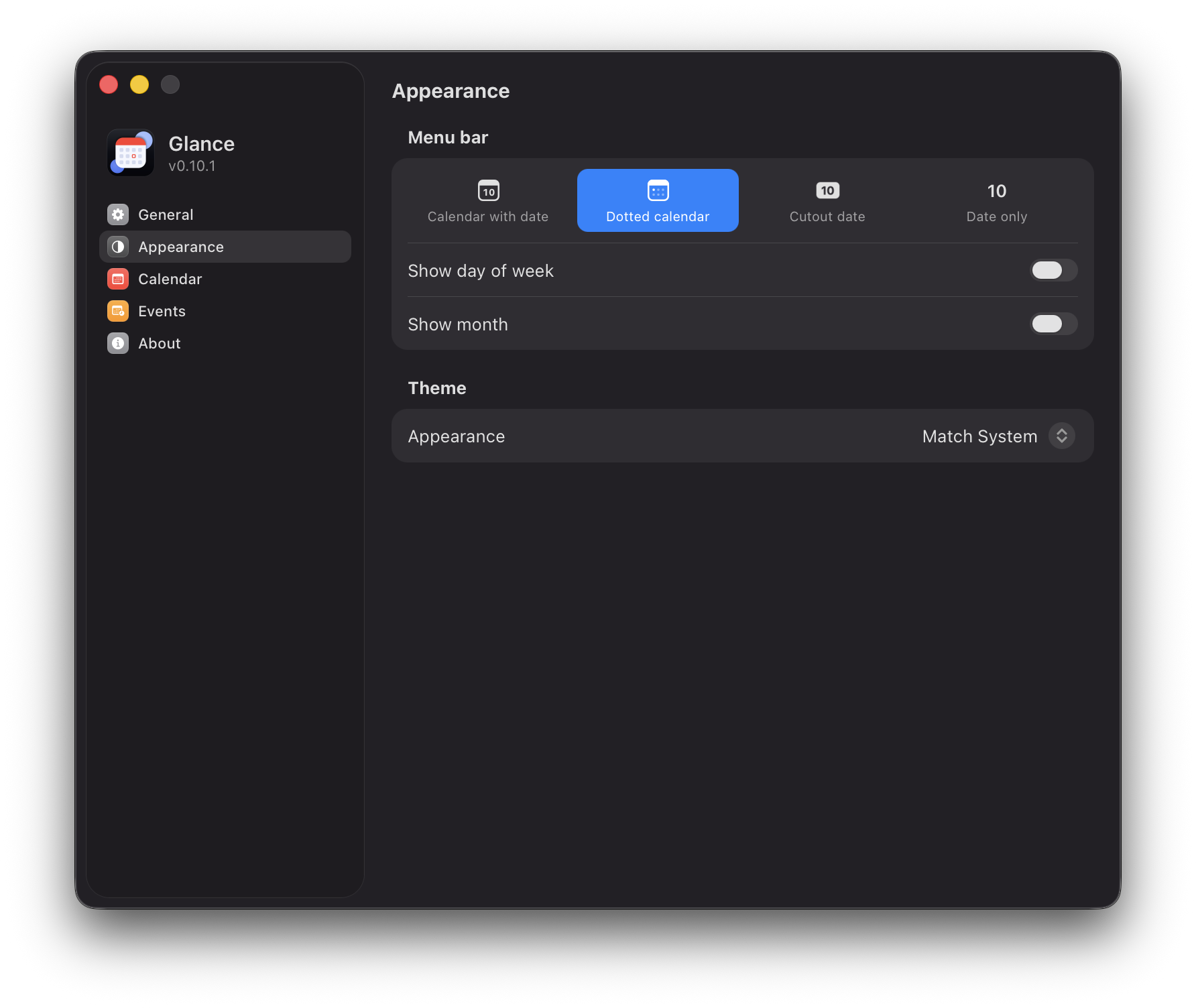
The popover opens and closes like a system menu, in the system font and colors, and follows light and dark. Settings is laid out like System Settings: four menu bar styles, your accent color for today, week numbers, and which calendars count.

Settings → Appearance, laid out like System Settings: four menu bar styles, each named, and the theme
  • Tick off reminders

    Reminders sit beside your events. Tick one to mark it done in Reminders, with Undo right after.

  • A second time zone

    Pick a city to see each event’s start there too, and its time in the menu bar if you like.

  • Your calendars, your lists

    Choose which calendars and reminder lists Glance reads, and which events the countdown counts.

  • Your language and region

    Dates, the 12- or 24-hour clock and the first day of the week follow your Mac. Week numbers count the ISO or US way.

  • Keyboard and VoiceOver

    The month, search, quick add and Settings work from the keyboard, and VoiceOver reads your next meeting.

  • Updates itself

    New releases install quietly, and only once the calendar and Settings are closed, so nothing you’re typing is lost.

Stays on this Mac.

Glance reads Calendar and Reminders locally and uploads nothing. It asks for at most three permissions, and works with none of them.

  • Calendar

    For the month’s dots, the day list, search, the countdown, and the events you add.

  • Reminders

    For scheduled reminders beside your events, and ticking them off.

  • Accessibility

    Only for the shortcuts that work from any app.

The only connection Glance makes itself is the update check to GitHub. Everything else that reaches the network is a page you open: a meeting you join, a place in Maps, an event you hand to Google Calendar.

Ready in a minute.

  1. 01

    Download

    Get the disk image from the latest release.

  2. 02

    Drag to Applications

    Open the disk image and drag Glance into Applications.

  3. 03

    Open it once

    Glance isn’t notarized yet, so macOS stops the first launch. Open it, then choose Open Anyway in System Settings → Privacy & Security. On macOS 14 and earlier, right-click Glance and choose Open instead.

Get Glance for your Mac.

Needs an Apple Silicon Mac on macOS 13 or later. After the first launch, it opens normally and keeps itself up to date.

Download for Mac